

From firmware 4.x the USG supports the IGMP protocol for controlling multicast streams. The USG's integrated switch forwards a multicast stream to all ports in the zone where the set-top box is located. Thus, the set-top box is advantageously operated in a separate zone on a single port (see menu Port Role). The following settings apply to operating an STB in the LAN1 zone.
Enable IGMP on the WAN interface
Configuration> Network> Interface> Ethernet> wan1> IP Address Assignment:
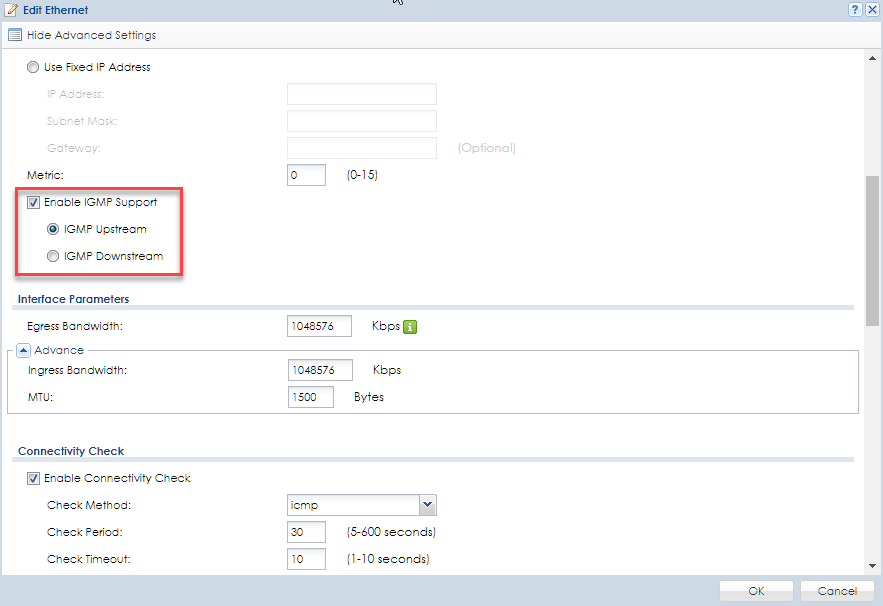
- Enable IGMP support: activated
- IGMP upstream: activated (= default value)
Enable IGMP on the LAN2 interface
Configuration> Network> Interface> Ethernet> lan1> IP Address Assignment:
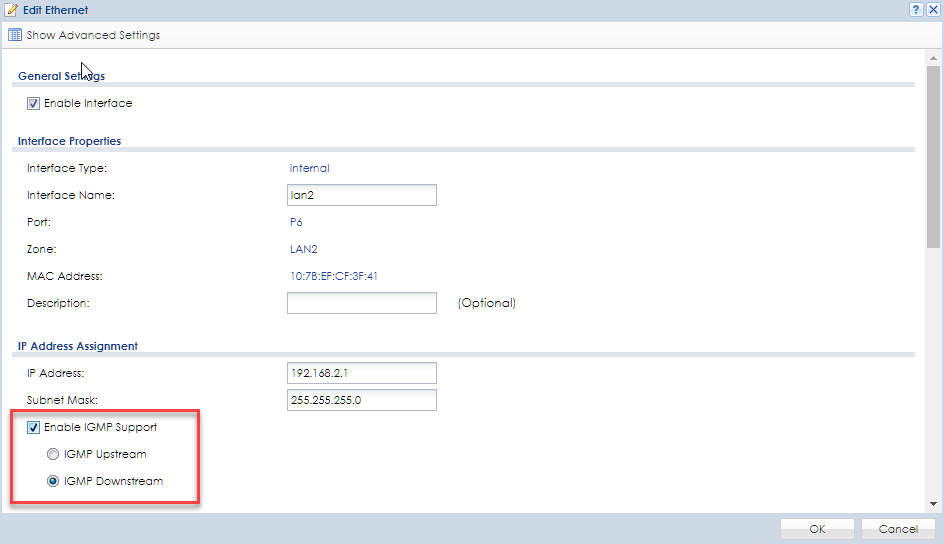
- Enable IGMP support: activated
- IGMP Downstream: activated (= default value)
If IGMPv3 is required!
You would have to login per SSH and use the following commands. Please use the command for each interface needed. This means the WAN interface and the LAN interface.
Router# configure terminal
Router(config)# interface wan1
Router(config-if-wan1)# igmp version 3
Router(config-if-wan1)# exit

Router(config)# interface lan1
Router(config-if-lan1)# igmp version 3
Router(config-if-lan1)# exit
Router(config)# write
In order for the USG to receive IGMP information at the WAN interface and forward multicast data to the LAN2 zone, new firewall rules are needed.
Firewall rule 1
Configuration> Object> Address> Address> Add:
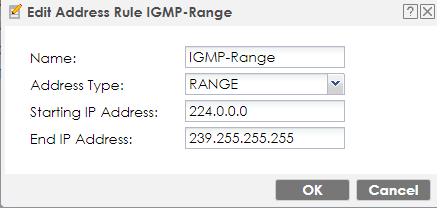
- Name: IGMP_Range
- Address Type: Range
- Starting IP Address: 224.0.0.0
- End IP Address: 239.255.255.255
Configuration> Security Policy> Policy Control> Policy> Add:

- Name: IGMP_to_LAN
- From: WAN
- To: LAN1
- Destination: IGMP_Range (previously created Address object)
- Action: allow
Firewall rule 2
Configuration> Security Policy> Policy Control> Policy> Add:

- Name: IGMP_to_ZyWALL
- From: WAN
- To: ZyWALL
- Service: MULTICAST
- Action: allow
Firewall rule 3
Configuration> Object> Service > Add:
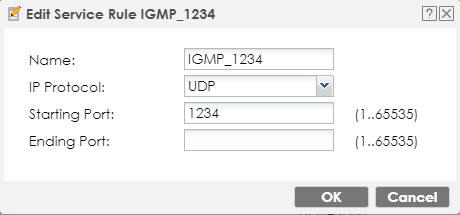
Configuration> Security Policy> Policy Control> Policy> Add:

- Name: IGMP_to_LAN
- From: WAN
- To: LAN1
- Service: IGMP_1234
- Action: allow
Troubleshooting Tips: Without a proper firewall rule 1, the stream will abort after a few seconds after a channel change. If Firewall Rule 2 does not work, the stream will stop after about 5 minutes.
These settings have been verified with Swisscom TV (black STB) and Swisscom TV 2.0 (white STB) and also work with activated IP forwarding on a Centro router.
KB-00390
DISCLAIMER:
Dear customer, please be aware that we will provide you with a translation of the article into your local language. Not all text may be translated accurately. If there are questions or discrepancies on the accuracy of information, please review the original article here: Original Version
Comments
0 commentsPlease sign in to leave a comment.