

The USG LITE 60AX is a WiFi 6 (AX6000) router/security gateway designed for small and medium-sized businesses, managed through the cloud platform Nebula Control Center (NCC). According to the product overview, the device supports SecuReporter Traffic Log Archiving. Traffic logs from the USG LITE 60AX can be forwarded to SecuReporter and stored in the cloud, without requiring a separate log server.
The device can send traffic logs to SecuReporter via Nebula. Once enabled, logs are processed in the cloud and become available in the SecuReporter dashboard.
Detailed Traffic Information
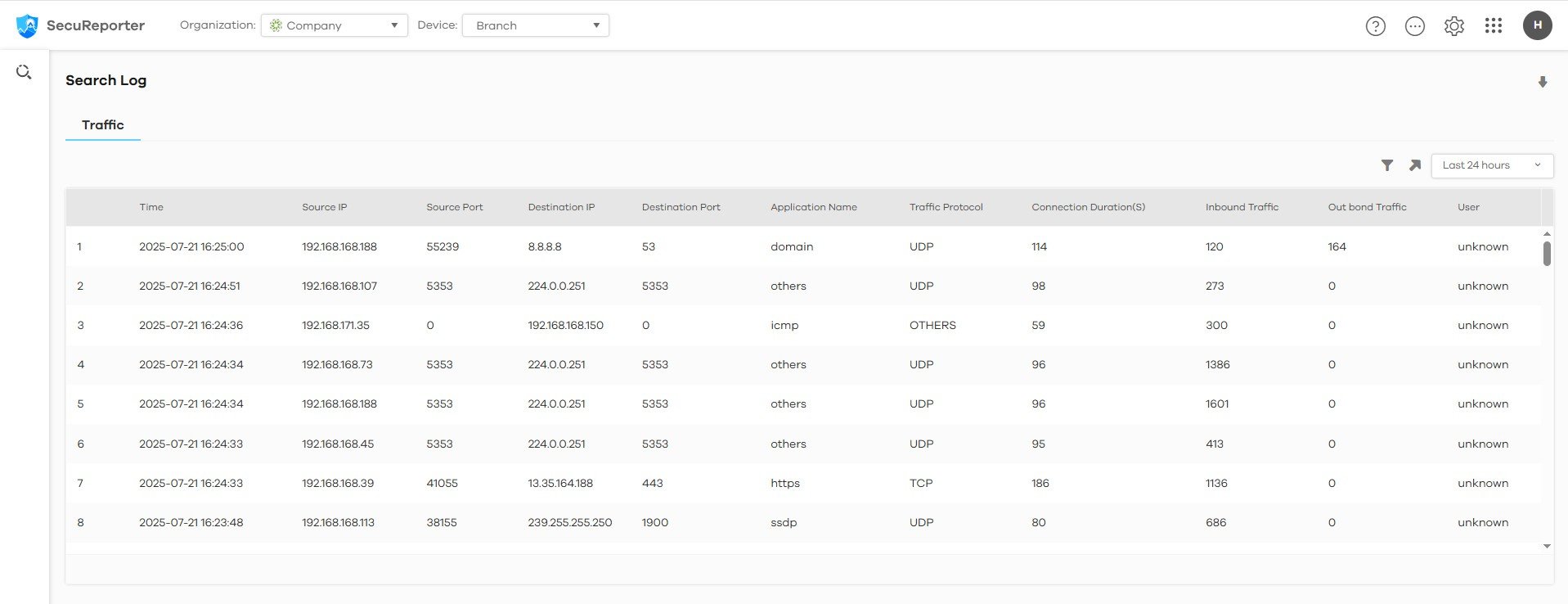
Each traffic log entry includes:
timestamp
source and destination IP
source and destination ports
protocol
application
MAC address
hostname
user
operating system
These records provide clear insight into communication between local systems and remote servers.
Filtering and Analysis Tools
SecuReporter allows administrators to:
filter logs by time range (24 hours, 7 days, or custom)
filter by user, device, destination country, port, protocol, or IP
review individual log entries in detail
export logs for reporting or offline analysis
These tools streamline event investigation and traffic monitoring.
Cloud-based Storage
Traffic logs are stored in SecuReporter’s cloud environment, providing centralised access and eliminating the need for a separate local log server.
Requirements
To use Traffic Log Archiving:
The USG LITE 60AX must operate in Nebula-managed mode.
A valid Nebula Pro Pack or Nebula Elite Pack licence is required.
Firmware version 2.20 or later must be installed.
The device must be registered in SecuReporter through Nebula.
Limitations
The USG LITE 60AX supports Traffic Logs only in SecuReporter.
(Other log categories available on higher-tier security gateways are not supported on this model.)Log processing and availability depend on Nebula’s cloud handling workflow.
Only data shown by SecuReporter’s interface and filtering tools is available for analysis.
Configuration Steps
Log in to Nebula Control Center.
Go to Configure → Site Settings.
Enable traffic log forwarding.
Open SecuReporter from the Nebula interface. Review incoming logs in the dashboard and apply necessary filters. Export logs if required for auditing or documentation.
Comments
0 commentsPlease sign in to leave a comment.