

This article explains the license transfer and migration options available for Zyxel USG FLEX H Series firewalls in Nebula Control Center (NCC). It covers how licenses can be transferred between compatible H Series devices, as well as how licenses from legacy USG FLEX and ATP firewalls can be migrated to H Series models. The article also outlines the requirements, limitations, and supported scenarios for both processes.
License Transfer for the USG FLEX H Series Devices
Flexible License Transfer Across Models:
- Gold Security Pack: Administrators can transfer the Gold Security Pack license within the same H-Series tier. For example, a Gold Security Pack license from a USG FLEX 100H could now be transferred to USG FLEX 100HP.
- Entry Defense Pack: The Entry Defense Pack license can be transferred across the entire H-Series, making it easier to manage and optimize security coverage.
- Nebula Pro Pack & Plus Pack: Licenses for Nebula Pro and Plus Packs can be transferred across different NCC-managed products, such as from a USG FLEX 100H firewall to a compatible NCC-managed Access Point. This cross-device transferability provides greater versatility for network expansion or hardware upgrades.
Useful: the NCC Change Log helps administrators track:
- Transfer Out and Transfer In events;
- source and destination devices;
- transfer dates;
- transfer errors and their reasons for easier troubleshooting.
This makes license management easier when replacing hardware, upgrading the network, or moving services between devices.
Technical Guide: License Migration for Zyxel H Series Firewalls
How to transfer a license in NCC
- Go to Organization-wide > License & inventory.
- Open the Licenses tab.
- Find the license you want to transfer.
- Select the license.
- Click Actions > Transfer license
- In the transfer window, click Select.
- Choose the target Organization.
- Choose the target Device.
- Click OK.
- Click Finish to complete the transfer.
Important notes
License transfer between different organizations is supported only if both organizations have the same owner account. Before starting the transfer, make sure that the source and destination organizations are managed under the same Nebula owner account. If the organizations belong to different owners, the license transfer cannot be completed.
Gold Security Pack can be transferred only within the same H-Series tier.
Example: USG FLEX 100H → USG FLEX 100HP.
Entry Defense Pack can be transferred across the full H-Series.
Nebula Pro Pack and Plus Pack can be transferred across compatible NCC-managed products, for example from a firewall to an access point.
After the transfer, check Change log to see Transfer Out, Transfer In, devices, date, or errors.
License Migration for the USG FLEX and ATP to USG FLEX H Series Devices
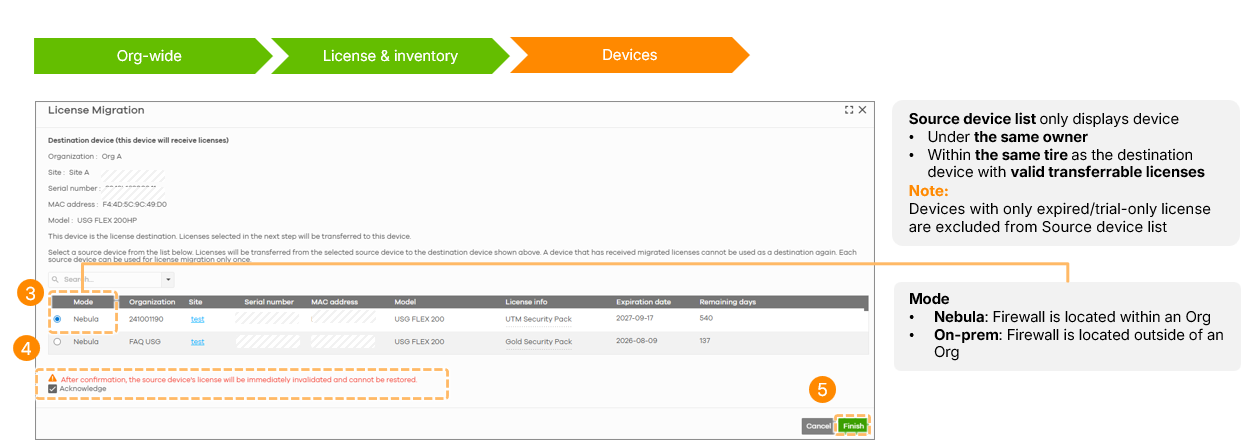
- Same Owner and Tier: Both the source (legacy firewalls) and destination (H series) devices must belong to the same account owner and be within the same device tier (e.g., USG Flex 200 to USG Flex 200H).
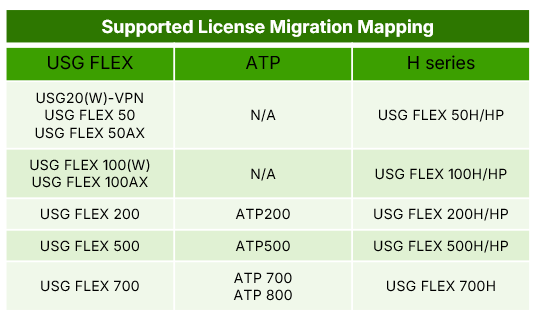
- One-to-One Mapping: Each H series device can receive licenses from only one source device; combining licenses from multiple units into one is not supported.
- Lifecycle Limit: Devices can typically participate in the migration process only once, with the exception of RMA scenarios where a replacement unit may be eligible for a new migration.
- Irreversibility: Once the migration is confirmed, the licenses are permanently moved to the H series device and cannot be returned to the original source.
License Eligibility and Automatic Upgrading
Eligible license types include Content Filter, UTM, Gold Security Pack (GSP), Secure WiFi, and Nebula Pro/Plus packs. Notably, Content Filter or UTM licenses from source devices are automatically upgraded to the Gold Security Pack (GSP) when migrated to the H series platform.
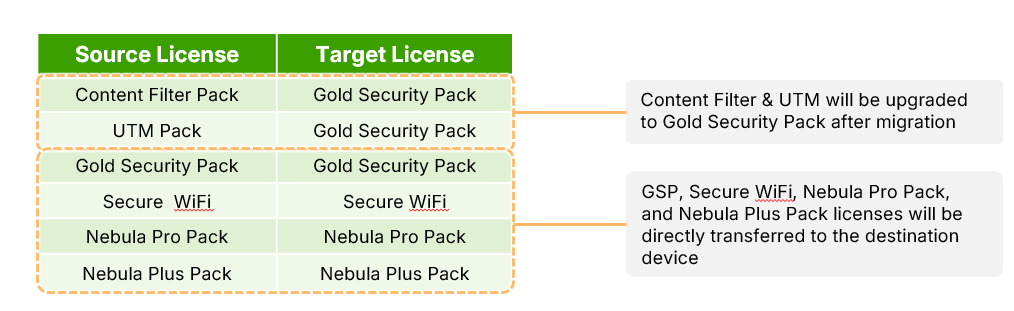
Active, deferred, and queued licenses are eligible, though trial licenses are excluded and will be reset to zero on the source device upon completion of the process.
Calculating Remaining Duration
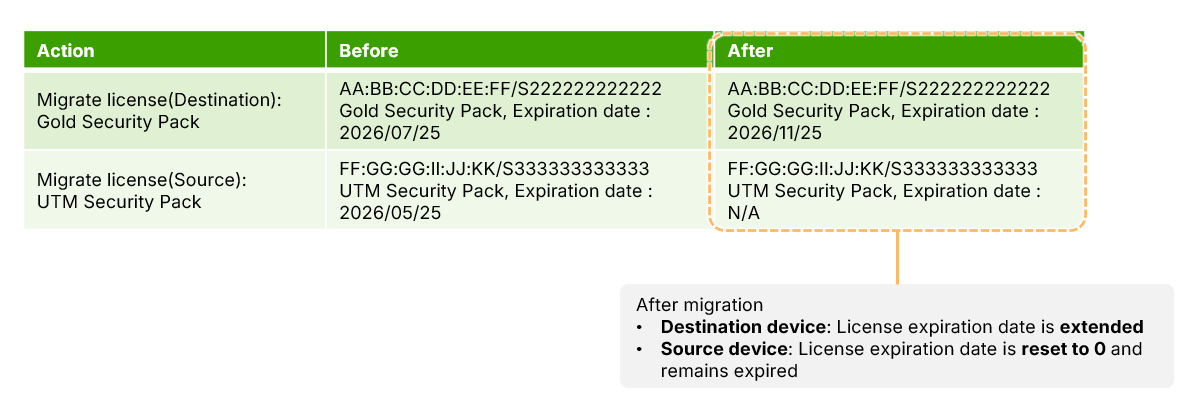
NCC employs a "maximum duration principle," where the remaining days of all eligible non-trial licenses are summed and then added to the destination device's expiration date.
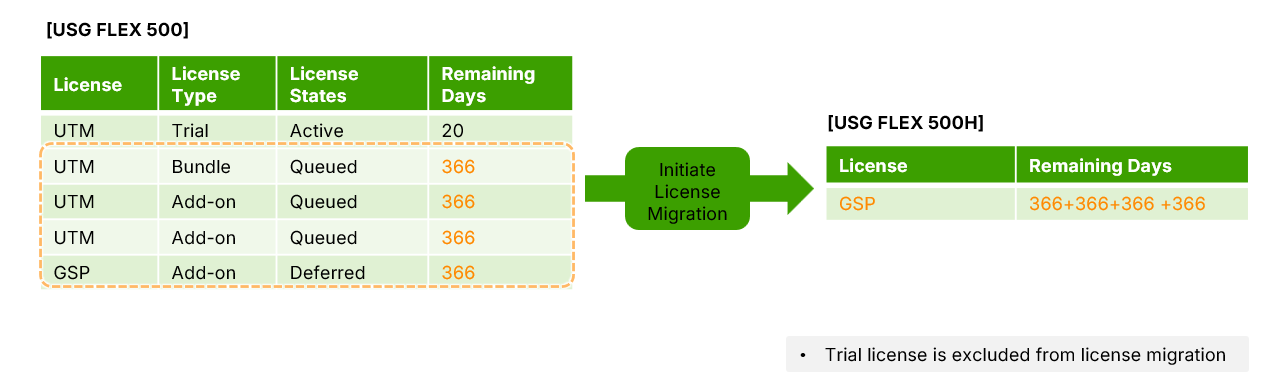
Configuration Procedure
To perform a migration, navigate to Organization-wide > License & inventory > Devices. Locate and select the target H series device, then click the Action button within that device's row and select Receive license.
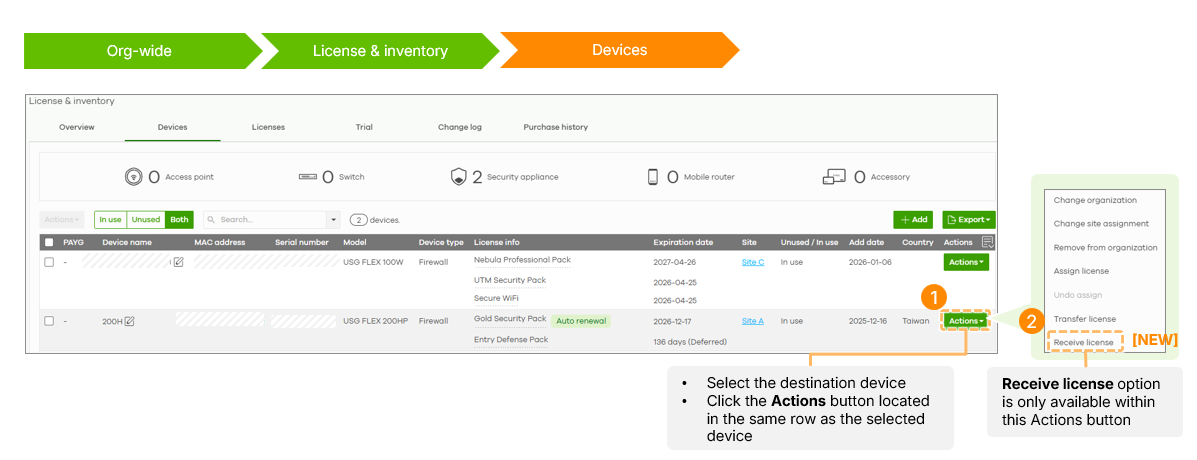
A list of valid source devices will appear; select the desired unit, acknowledge the terms, and click finish.
Post-Migration Verification
Following the transfer, the source device's licenses will reflect an expired status with zero days remaining, while the destination device will show an extended expiration date. These actions are recorded in the Change Log for both devices, detailing the specific changes in expiration dates. The feature is available to administrators with Owner or Full Organization privileges and requires no additional licensing.
Comments
0 commentsPlease sign in to leave a comment.