

A recent update to the Application Patrol signature version 1.0.0.20220310.0 for ATP/USG FLEX series security gateways may cause the gateway to hang during boot-up.
What is the issue?
The App Patrol signature version V1.0.0.20220310.0 can cause parsing errors on security gateways that are operating in standalone mode or managed via Nebula. The App Patrol service will not function after this signature update, but other UTM features continue to work. In this state, if the gateway is manually rebooted or rebooted by a scheduled task, it may hang during the boot process.
Which devices are affected and how to check if this issue applies to your gateway?
The issue occurs on all ATP and USG FLEX series gateways running firmware versions from 5.00 to 5.20 that have installed the problematic Application Patrol signature version 1.0.0.20220310.0.
In the Configuration => Licensing => Signature Update section, check which version of the App-Patrol signature is installed.

If your device uses the problematic signature version and has firmware version 5.00-5.20, do not manually reboot the gateway and disable any scheduled reboot settings if present!
If the issue applies to your device but it has not been rebooted yet.
Solution:
Update your gateway to the latest firmware version - V5.21patch1, where the signature issue has been resolved. You can update via the cloud or manually using a firmware file downloaded from the myzyxel.com portal.
Update the partition that has the Running status:
If the gateway fails to boot after a reboot attempt.
Make sure the issue is related to loading the problematic signature by checking the following symptoms:
1) The gateway does not respond within 10-15 minutes after power is applied.
2) The PWR LED is solid green, and the SYS LED is blinking continuously.
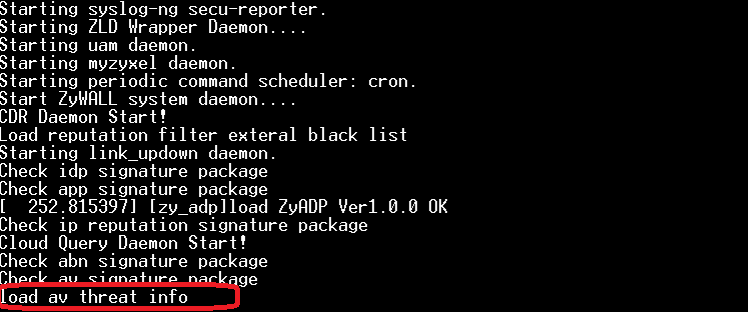
3) When accessing the gateway via the COM port, the boot log stops at the line:
load av threat info...
The full log looks like this example:
Solution:
In this state, it is possible to recover the gateway without losing the configuration file. You will need a console adapter (e.g., DB9<=>USB) and any terminal program (we recommend TeraTerm). Recovery must be performed on-site where the gateway is installed.
Step-by-step recovery procedure:
1) Connect the USB console adapter to the gateway (the gateway can be powered on or off).
2) Launch TeraTerm on your computer and set the console port parameters as follows:
3) Power on or reboot the gateway. You should see the gateway’s boot log in the terminal window. If you see random characters, unreadable text, or similar issues, check:
a) The console adapter is properly connected and the correct drivers are installed.
b) The keyboard layout is set to Latin (ENG).
c) The console port parameters and selected port are correct.
If the display problem persists, try restarting TeraTerm and replacing the console adapter.
4) When the boot process reaches the line:
"Press any key to enter debug mode..."
Press any key to enter debug mode. In this mode, you need to switch the gateway’s boot partition (firmware partition number). By default, the gateway uses the first partition. If you are unsure which partition the gateway is currently using, first try the commands:
atcd 2
atgo
5) Wait for the gateway to boot. If the boot stops again at the same point (load av threat info...), repeat steps 3 and 4. In step 4, instead of the command atcd 2, execute atcd 1.
6) During boot, the console log should display the firmware version of the loaded partition.
Example:
If the firmware version is 4.30 or higher, skip step 6.
If the firmware version of the backup partition is 4.29, you must first perform initial setup and update the firmware on that partition before proceeding. To do this:
a) Connect a computer to the gateway’s LAN Ethernet port and ensure the computer receives an IP address from the gateway’s DHCP server.
b) Log in to the device with the factory default account:
Username: admin
Password: 1234
If the password does not work, reset the device to factory defaults by holding the Reset button for up to 10 seconds, then repeat step b. The main device configuration should remain unaffected.
c) Complete the step-by-step setup by configuring the device’s network settings with internet access, and finally update the firmware using the cloud update feature.
If the device cannot download the firmware, try downloading the .bin file manually from the myzyxel.com portal.
7) After accessing the gateway’s web configuration, download all configuration files available from Maintenance => File Manager.
Alternative method to download configurations via FTP:
a) Open FTP by entering the address ftp://192.168.1.1 (or the device’s IP address on your local network). You can use your browser or FileZilla.
b) Log in as user admin.
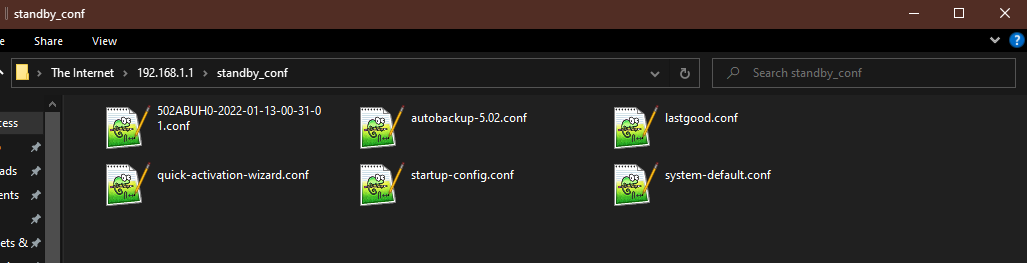
c) IMPORTANT: open the folder Standby_conf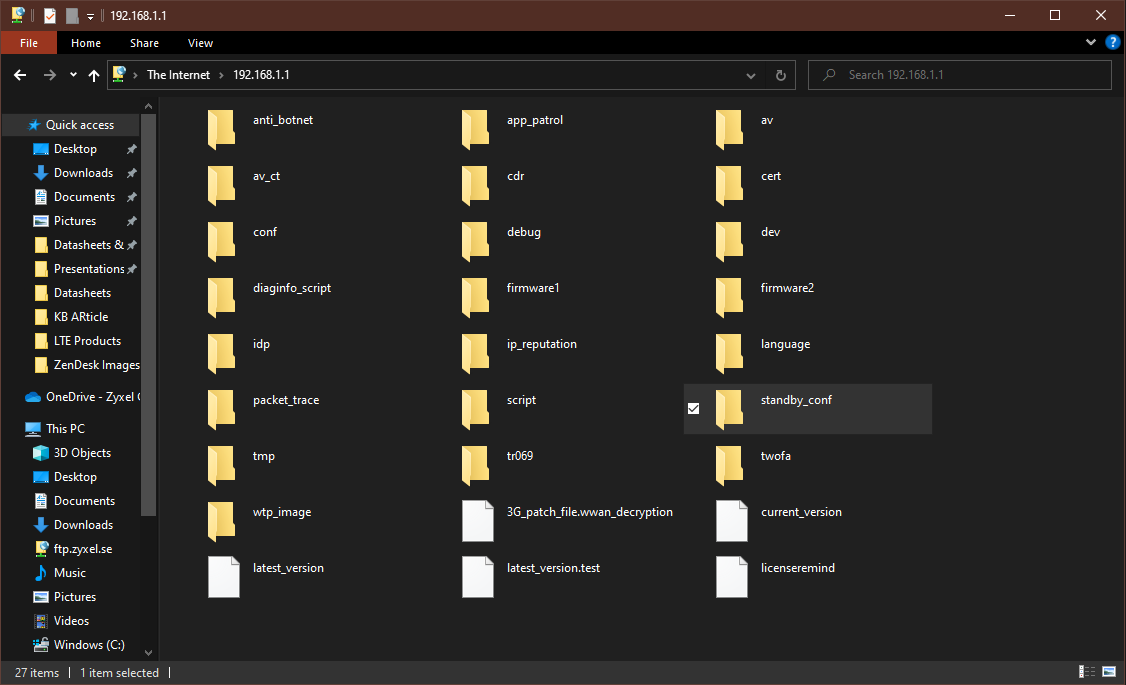
d) Download all configuration files from the Standby_conf folder and check the startup-config.conf file by opening it in any text editor to verify correct settings.
USG / ATP Series — Explanation of Device Partitions and Various Configuration File Types
8) In the Firmware Management section, update your gateway to the latest firmware version - V5.21, where the signature issue has been fixed. You can update via the cloud or manually with a firmware file downloaded from the myzyxel.com portal.
Update the partition that has the Standby status:
Updating Security Gateways via Cloud Service
We recommend that after selecting the update method, do not immediately boot into the problematic partition. In the "Reboot device?" window, select "No." The gateway will continue running on the current partition. After the update, check the File Manager section; if new configuration files appear, repeat step 7.
9) Once the partition with Standby status is updated to version 5.21, you may reboot into it via the web interface:
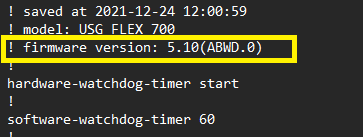
The gateway should boot into the previous partition and load the configuration that was active before the reboot with the issue. If the configuration is reset, apply the latest version from the previously downloaded configurations. Before loading and applying the configuration, open it in any text editor and delete the 3rd line (with the firmware version).
If you have any questions at any step or the recovery procedure does not work, please open a support ticket indicating at which step the issue occurs - How to Contact Support?
Comments
0 commentsPlease sign in to leave a comment.