

Simplify Your Access, Enhance Your Security
We're excited to announce a powerful new feature for Zyxel Account users! Now you can streamline your login experience with Microsoft Entra ID integration, enabling Single Sign-On (SSO) across all Zyxel platforms. This seamless authentication method eliminates the need for separate passwords while enhancing security through your organization's identity management system.
This guide explains how to configure Microsoft Entra ID (formerly Azure AD) as an Identity Provider (IdP) for Zyxel Account, making authentication simpler and more secure for your entire organization.
Key Benefits of Microsoft Entra ID Integration
✓ Enhanced Security: Leverage Microsoft's robust identity verification systems
✓ Streamlined Access: One-click login across all Zyxel platforms
✓ Simplified Management: Centralized user administration through your Microsoft environment
✓ Reduced Password Fatigue: No more separate Zyxel Account passwords to remember
✓ Improved Compliance: Better audit trails and access controls
Important to Know Before You Begin
Settings
1. Each domain can only be configured with one set of Entra ID settings to ensure consistent authentication and access control across your organization.
2. Once an Entra Application ID configuration is verified for a domain, any identical Entra Application ID and domain pairs will be blocked and removed.
3. Once IT completes the Entra ID configuration, all users within the same domain will automatically transition to 'Continue with Microsoft Entra ID' as their authentication method.
For New User
1. When a new user from a configured domain successfully signs in with Entra ID for the first time, a Zyxel Account will be automatically created.
2. When users from a configured domain attempt to sign in through non-Entra ID methods, they will receive an email notification informing them that 'Continue with Microsoft Entra ID' is the exclusive authentication method for their organization.
3. Once the IT team completes the Entra ID configuration, it will be the only login method for the company domain. Users will no longer have the option to log in using conventional username and password combinations.
For IT
1. IT should not use a delegate email or a shared email address which doesn't have a password to process Entra ID settings, as it will encounter issues during the testing phase.
2. To disable Entra ID after deployment, please follow the EITS process to submit a ticket.
3. To change the email address, please follow the EITS process to submit a ticket.
Prerequisites
- Microsoft Entra ID administrator account with global admin privileges
- Zyxel account using Email & Password method
Step-by-Step Configuration
Step 1: Log in to your Zyxel Account at Zyxel Account, or navigate to Manage Account from the profile when you are in another Zyxel platform.
 |
 |
| Step 2: Navigate to the Microsoft Entra ID tab, and toggle on the Set up Microsoft Entra ID | Step 3: Click Download metadata XML File for later use |
Step 4: Access Microsoft Entra Admin Center
- Link to access the Microsoft Entra admin center
- Sign in with an account that has Global Administrator or Enterprise Application Administrator privileges
Step 5: Create Enterprise Application
- From the left menu, select Applications > Enterprise Applications
- Click Create your own Application
- Click New Application
Step 6: Configure Single Sign-On
- Select Set up single sign-on

- Choose SAML as the sign-on method

- Upload the Metadata XML file (Basic SAML Configuration section from Step 3)

Step 7: Configure Attributes & Claims
- Map user.userprincipalname → Name ID
- Other common attributes: givenname, surname, email

Step 8: Download IdP Metadata File
- On the same page, locate the SAML Certificate section
- Download the IdP Metadata XML file for Zyxel Account (SP) integration

Step 9: Upload IdP Metadata File
- Return to Zyxel Account settings.
- Click Upload file button to choose the Entra ID metadata file,

- Click Save

Note: Common upload failures may be due to:
- Incorrect file format (must be XML)
- Invalid data structure
- Non-Microsoft Entra ID metadata file
- Domain already configured
- Application already in use
Step 10: Verify Entra ID Configuration
| Click Verify to open a new verification page | Click Verify to open a new verification page |
 |
 |
| Upon successful login, you'll see a verification success page | Upon successful login, you'll see a verification success page |
 |
 |
Step 11: Assign Users or Groups
- Navigate to Users & Groups menu, click Assign users & groups

- Select the checkboxes next to the users or groups that need SSO access, then click the Select button. The selected users and groups will appear in the panel on the right side.

- Click Assign button

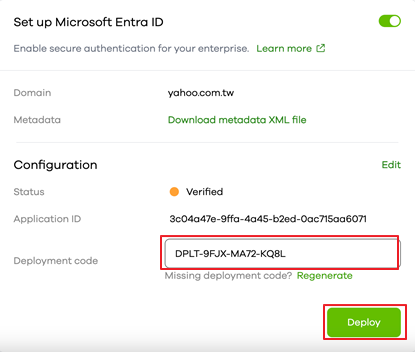
Step 12: Deploy Entra ID Settings
- Copy the deployment code from successful deployment in step 10 and paste it in the Deployment code. Click Deploy
| Users with the same domain will receive a notification email | IT administrators will also receive a confirmation email |
 |
 |
The deployment completion screen of Entra ID settings is as follows

Step 13: Continue with Microsoft Entra ID
| Return to Zyxel Account login page, and click Continue with Microsoft Entra ID | Enter Domain of your company, and click Continue button |
 |
 |
Enter your Entra ID credentials, and click Next button

What can IT do if login issues occur?
| IT administrators can click the Forgot Password button on the login page. | Enter the IT email address to receive an authorization email for troubleshooting access. Click Send button |
 |
 |
- An authorization email will be sent to grant IT administrator login access.

Comments
0 commentsPlease sign in to leave a comment.