

This article explains how to configure Syslog on Zyxel USG FLEX H Series devices for efficient log collection and management. It covers sending logs to a local Syslog server, forwarding them through a Site-to-Site VPN to a remote server, and saving logs on a USB drive. By following this guide, administrators can set up a secure and reliable logging system for effective monitoring and troubleshooting.
How to Setup and Send Logs to a Syslog Server ?
Note: All network IP addresses and subnet masks are used as examples in this article. Please replace them with your actual network IP addresses and subnet masks. This example was tested using USG FLEX 200H (Firmware Version: uOS 1.10).
- Set Up the Syslog Server. Install the syslog server. In this example, we use tftpd32 as the syslog server.
- Set Up Remote Server Setting on the Gateway Go to Log & Report > Log Settings > Log Category Setting. Use the drop-down list to select what information you want to log from each log category.
Go to Log & Report > Log Settings > Remote Syslog Server. Set Log Format to be CEF/Syslog and type the server name or the IP address of the syslog server. Turn on “Active” to send log information to the server.
Test the Remote Syslog Server Check logs on the syslog server.
How to send syslog logs over site to site VPN?
This example illustrates how to send logs of USG FLEX 100H to the syslog server over route-based VPN.
Topology:
USG FLEX 100H----VPN----USG FLEX 500H(ge3: 192.168.97.1/24)------syslog server(192.168.97.33)
Steps:
- Use wizard to configure route-based VPN on both USG FLEX H firewalls.
- Ensure the VTI (Virtual Tunnel Interface) IP addresses are configured within the same subnet on both devices. No additional policy route is necessary if the static routes are correctly generated by the VPN wizard.
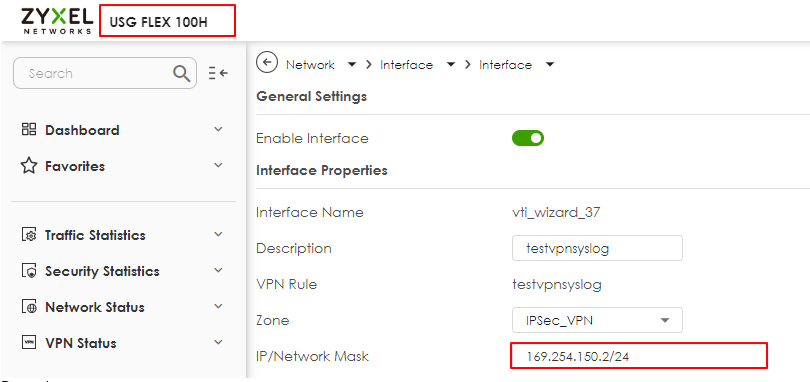 | 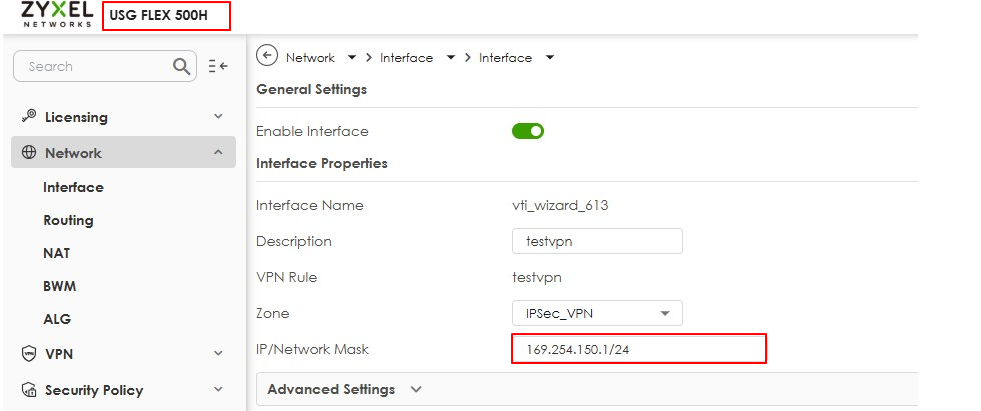 |
Configure Log Category Setting and Remote Syslog Server on USG FLEX 100H.
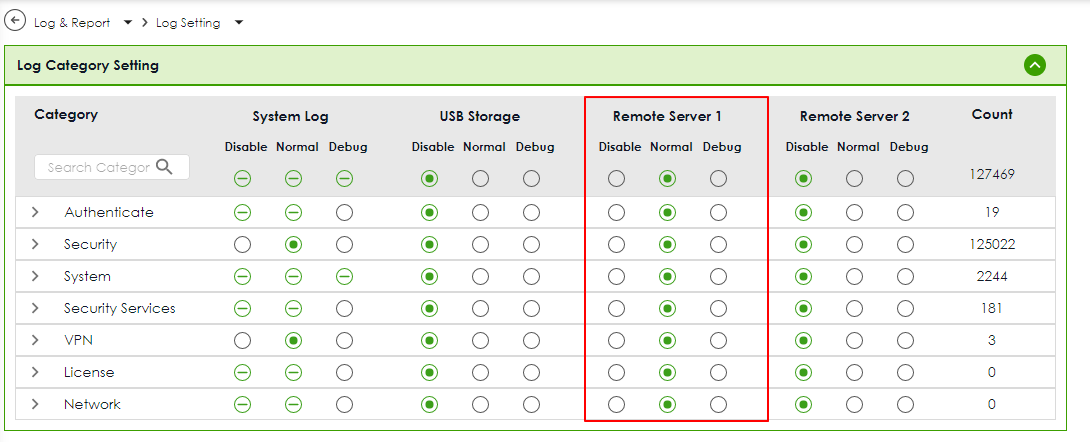 | 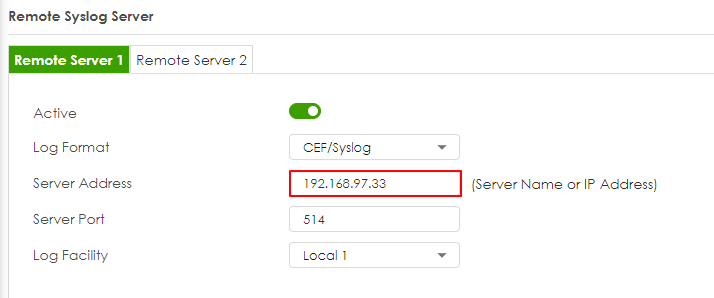 |
Result:
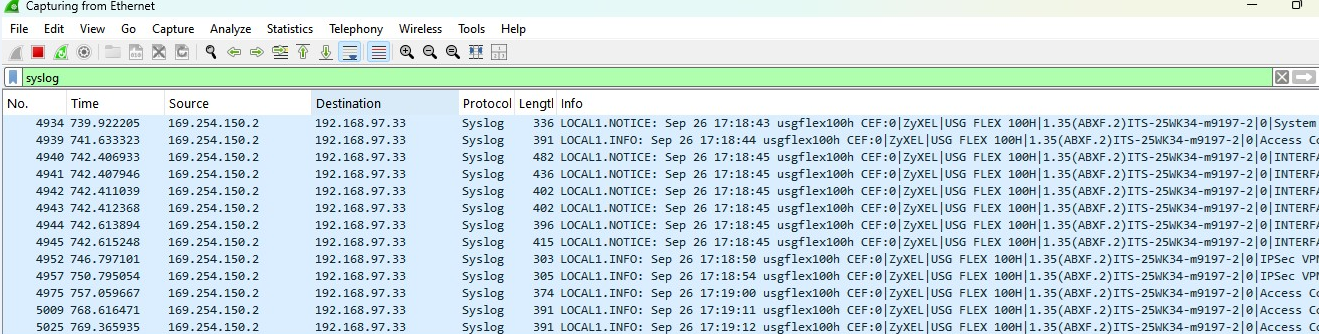
Check if logs are sent to the syslog server located on the remote site of VPN. You can also capture packets on the syslog server to check the result.
How to Setup and Send logs to the USB storage ?
USB Storage device Plug in an external USB storage device. USB storage devices with FAT16, FAT32, EXT2, or EXT3 file systems are supported to be connected to the USB port of the gateway. Set Up the USB storage on the Gateway Go to Log & Report > Log Settings > Log Category Setting. Use the drop-down list to select what information you want to log from each log category.
Go to Log & Report > Log Settings > USB Storage. Turn on “Enable USB storage” to store the system logs on a USB device.
Check the USG Log Files Go to Maintenance > Diagnostics > System Log. Select a file and click “Download” to view the log.
You can also connect the USB storage to PC and find the files in the following path. Name_dir\centralized_log\YYYY-MM-DD.log
Comments
0 commentsPlease sign in to leave a comment.