

This guide covers setting up parental controls on AMGxx and VMGxx series products. Additionally, this tutorial provides a step-by-step guide to enhancing the functionality of your VMG1312 network. You'll learn how to share files from your USB stick across the entire local network, ensuring easy access to important data.
Parental Control is a simple yet powerful tool for managing and restricting internet access for specific users within your network. It helps you maintain a safe and controlled online environment. Follow this article to effortlessly set up these essential features.
Parental Control (AMG 1302)
- To set up parental control, please log on to your router (default IP: 192.168.1.1; admin/1234)
- Go to Security> Parental Control and choose "Enable". This activates parental control. If this option is not activated, all other settings regarding parental control will be ignored!
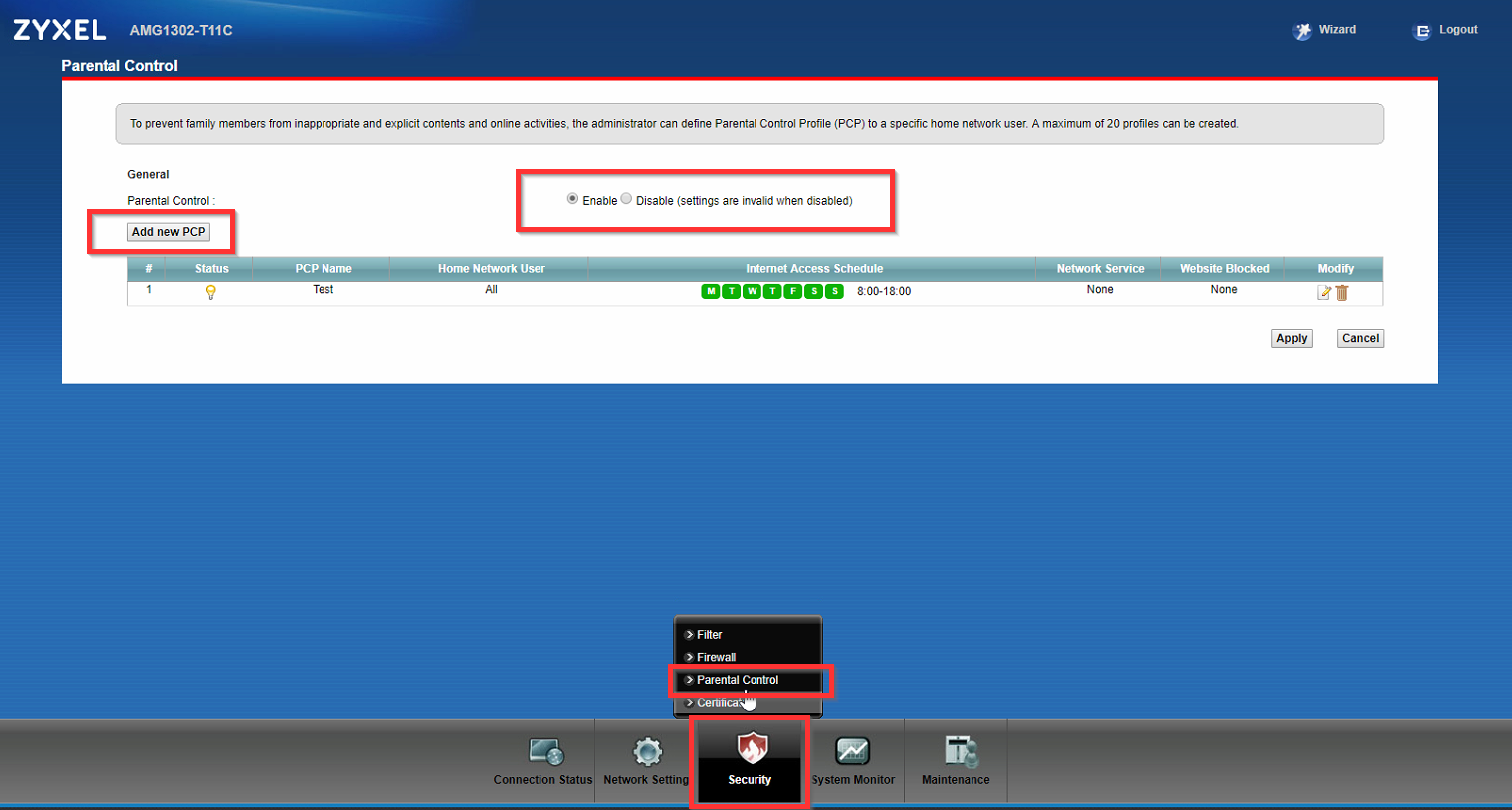
- To create a new rule, click on "Add new PCP" We will now explain the single steps that need to be done:
- Activate the rule (If not, the rule won't take action) and choose a fitting name:
- Select the device(s) the rule has to work for (MAC address-based).
- Choose all, custom or a specific connected device and click on "+". If you choose "All" and click add the MAC address 00:00:00:00:00:00 will be added to the rule list.
- A custom MAC is set like this:
- You also have to click "+" after you enter the MAC address
- Select when the rule has to work:
- You'll be able to choose between every day or specify the days by ticking the respective box.
- You also can specify which time on the selected day the rule will take effect by sliding the timeline:
- Also, it is possible to have more than one timeline by clicking on this symbol:
- Now you can select what shall be blocked/allowed:
- You can choose if you like to block or allow specific services and specific URLs or keywords.
- Services: If you click on "Add new service," you can choose from a few preconfigured services and create your services.
Now you can choose if the rule shall allow or block the service(s) you have added.# You can also activate or deactivate specific services by ticking or unticking the left checkbox.
- If you want to activate/deactivate all services from this rule, tick the box after the #-sign.
- To modify a service, click on Modify on the right site. Click on the bin symbol to delete the service from the rule.
For URL/Keywords, there is a limitation: HTTPS traffic cannot be blocked from the router!
To add a keyword, click "add" and enter the keyword. You can enter five keywords at once. Here you also can decide if a URL/Keyword-list is allowed or blocked.
So, if you, for example, block all HTTP/HTTPS traffic but allow google.com, the connection is still blocked! Also, If you block a specific service/keyword in rule #1 and allow the same service/keyword in rule #2, the traffic will not be allowed!
To finalize the rule, click on "Apply"
USB File Sharing (VMG 1312)
- Make sure the USB device is connected to the VMG before starting the configuration
- Access your device by entering its IP address in the browser address line and log in by using the device’s credential
- Navigate to Network Settings > USB Service
- Set File Sharing Services to enable and press Apply
- Press "Add Directory List" under "Share Directory List."
- Browse for the folder you want to use as a share
- On your Windows Client, you can access the share with \\[VMG_IP]\[Shared Folder Name]
USB Media Server Stream WMP (VMG3312-T20A)
This guide will demonstrate how to set up a media file server to stream music from a USB drive connected to your VMG router. Afterwards, you should be able to stream the files using Windows Media Player, for example.
- Make sure you connect a USB stick formatted with FAT or FAT32 to your VMG router's USB port.
- Log in to the unit by entering its IP address and the credentials for an admin account (by default, the username is “admin”. The password should be printed on a label on your router)
- Navigate to Network Setting > USB Service > Media Server to enable the media server
- On your Windows computer, you can now open Windows Media Player, navigate to the library and should already see your media server on the left-hand side!
Comments
0 commentsPlease sign in to leave a comment.