

This comprehensive article guides you through the process of accessing the device's web interface, troubleshooting techniques for NR and FWA series devices (including NR2101, NR5101, NR7101, FWA510, and FWA710), and offers valuable insights into effective device management. Learn essential tasks such as device reset procedures, troubleshooting common connectivity and internet issues, updating firmware, manual configuration of Access Point Name (APN), enabling bridge mode (end-to-end IP address mode), and understanding the significance of indicator LEDs. Enhance your proficiency in device management and optimization through the insightful tips provided herein.
Disclaimer! This article offers a general overview of the series and may not apply uniformly to every model,
software/firmware version. Prior to purchasing or using the device, please consult the
model/version-specific documentation or reach out to technical support for accurate information.
Note: Click on the black arrows to show the text
NR2101 Troubleshooting
NR2101 - LED Lights
- LED Lights
- Reset the device
- Login to the device
- Connectivity issues? - Firmware Upgrade
- Asking for PIN every reboot
Where can you find the LED lights?
Indication
| COLOR | DESCRIPTION |
| This displays the type of network your NR2101 is connected to. Your network can be either 3g, 4G, or 5G. | |
| This displays the signal strength of the current WWAN of the NR2101 | |
| This displays when the NR2101 is receiving or transmitting data to/from the internet. | |
| WiFi network status. The number indicates how many client sare currently connected to the device. | |
| The NR2101 has received an SMS message. | |
| This icon shows the NR2101 battery life. |
NR2101 - Reset the device
If you have some recurring problems with the device, you can use the reset button to reset the device back to factory defaults which is a great way to solve most recurring problems.
- Make sure the device is connected to power and the power LED is on
- Press and hold the Reset button for 15 seconds
- Wait until the device reboots and you can reach the device again
NR2101 - Login to the device
To reach the device's web interface (where you can configure the device), you need to first login to the WiFi of the NR2101 go into your web browser and type http://192.168.225.1 - you will then get to this page:
If you have problems logging in to the device, you can look at this article: Accessing your router via Web GUI
NR2101 - Connectivity issues? - Firmware Upgrade
Firmware upgrading to the latest version could help with your issue because it's not running the latest modifications to the software of the device.
Go into the firmware menu on the device by Menu -> Update and click on "Check for updates"If the firmware fails, you can upgrade the firmware manually by downloading this firmware:
Zyxel 5G Devices [NR Series] - Advanced Downloads [Firmware and other resources]
- And then upload it manually here with your PC.
- Go into http://192.168.225.1
- Login with admin/admin or the new password that you have used previously. If you cannot come in, RESET the device and try again.
- Go into Firmware Upgrade and click on Start Firmware Upgrade:
Then upload the .zip file or unzip the .zip file and select ONLY the .bin file. The firmware upgrade will take about 2 minutes.
NR2101 - Asking PIN every reboot
If you are experiencing that you have to insert your PIN code to the SIM-card every time you login, you can disable PIN protection by login to the Web GUI of the device on your PC and navigate to SIM PIN Settings (make sure to be connected to the NR2101's WiFi when you do this step, even if you don't have internet). Then set SIM PIN lock to Disable.
If you can't find what you're looking for, please see the user guide here:
NR2101 5G NR Mobile WiFi
NR5101 / FWA510 Troubleshooting
NR5101 / FWA510 - Led Lights
- LED Lights
- LED Indication
- Reset the device
- Login to the device
- Connectivity issues? - Firmware Upgrade
- Connection unstable/slow and/or disconnections - Manual APN settings
Where can you find the LED lights?
- NR5101 - Led Lights
- FWA510 - Led Lights
NR5101 - LED Indication
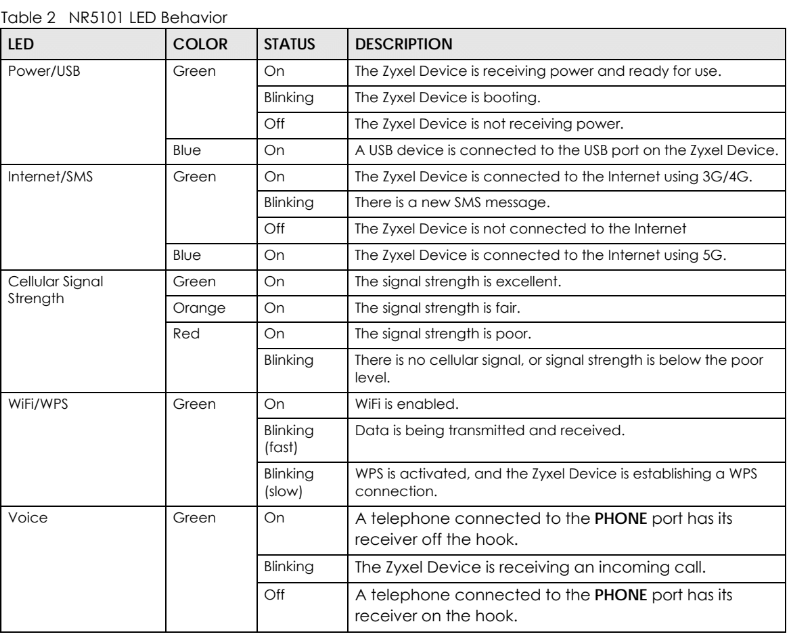 FWA510 - LED Indication
NR5101 - Reset the device
FWA510- Reset the device
If you have some recurring problems with the device, you can use the reset button to reset the device back to factory defaults which is a great way to solve most recurring problems.
- Make sure the device is connected to power and the power LED is on
- Press and hold the Reset button for 15 seconds
- Wait until the device reboots and you can reach the device again
NR5101 / FWA510 - Login to the device
If you have problems logging in to the device, you can look at this article: Accessing your router via Web GUI
NR5101 / FWA510 Connectivity issues? - Firmware Upgrade
Firmware upgrading to the latest version could help with your issue because it's not running the latest modifications to the software of the device.
- Login to the Web GUI of the NR5101 using this guide: Accessing your router via Web GUI
- Go to Maintenance -> Firmware Upgrade and then click on "Check for Latest Firmware Now". This should look at our databases for the latest firmware and then you can upgrade the device if there is a new firmware available.
Manual APN settings - connection unstable/slow and/or disconnections
- Setting APN settings manually NR5101 / FWA510
Sometimes when the device is querying information and settings from the ISP, the device is getting faulty information. Therefore you can navigate to Network Setting -> Broadband -> Cellular APN and click on "modify" to put in a manual APN.
Note! You get the APN setting information from your internet service provider (ISP).
Enable the APN Manual Mode and put in the information you got from your internet service provider (ISP).
NR5101 / FWA510 Cellular Band configuration
When it comes to band selection, the device has the possibility to aggregate several cellular bands with the "Band Auto Selection", which should be enabled for the best connection speed.
You could also choose the cellular band channels by yourself, but it will probably give you a slower connection than if it can choose and change the cellular bands by itself.
Note! If your 5G signal is really low, it will automatically connect to 4G because you will get a more stable connection, and maybe even faster connection. However, if you force the 5G signal, it could result in a really unstable connection. So we recommend to have it set to Auto.
NR5101 / FWA510 Setting the router to Bridge mode (IP Passthrough mode)
If you want to set the NR5101 to bridge mode (which means that all the traffic will be automatically forwarded to the router you have behind the NR5101), navigate to Network Setting -> Broadband -> Cellular IP Passthrough and then select Passthrough mode "Dynamic" to allow traffic to be send to the device that's connected to the device. Select "Fixed" if you want the NR5101 to send the traffic to a specific LAN client:
NR5101 / FWA510 - Asking for PIN every reboot
If you are experiencing that you have to insert your PIN code to the SIM card every time you login, you can disable PIN protection under
Network Setting -> Broadband -> Cellular SIMStill not finding what you're searching for? You can download the user guide here:
NR7101 / FWA710 Troubleshooting
NR7101 / FWA710 - Led Lights
- My WiFi has no internet connection
- LED Lights
- Reset the device
- Login to the device
- Connection Issues? - Firmware Upgrade
- Connection unstable/slow and/or disconnections
- Setting APN settings manually
- Setting the router to Bridge mode (IP Passthrough mode)
- Asking for PIN every reboot
- I get the wrong DHCP IP from the LAN Port
- Cellular Lock
My WiFi has no internet connection
My internet on WiFi is not working? The WiFi on the device is ONLY for management and not for surfing the internet. This is because of security reasons. You need to connect a router to the device via a cable that you can connect to. It's recommended to have the device in bridge mode (See F) Bridge mode).
Where can you find the LED lights?
NR7101 LED Indicators
Indication
| COLOR | STATUS | DESCRIPTION |
| Red | On | The NR7101 is not connected to internet |
| Red | Blinking | The Nr7101 is booting or self-testing |
| Red | Off | There is a system failure |
| Green | On | The NR7101 is connected to internet |
| Green | Blinking | The NR7101 is trying to connect to internet |
| Amber | On | The NR7101 is connected to internet and the wireless network is activated |
| Amber | Blinking | The NR7101 is not connected to internet but the wireless network is activated |
| Red/Green/ Amber | Scrolling | The NR7101's firmware upgrade is in progress |
FWA710 LED Indicators
NR7101 Reset Button - Reset Device
FWA710 Reset Button - Reset Device
If you have some recurring problems with the device, you can use the reset button to reset the device back to factory defaults which is a great way to solve most recurring problems.
- Make sure the device is connected to power and the power LED is on
- Press and hold the Reset button for 15 seconds
- Wait until the device reboots and you can reach the device again
NR7101 / FWA710- Login to the device
To reach the device's web interface (where you can configure the device), you need to first login to the WiFi of the NR7101 go into your web browser and type http://192.168.1.1 - you will then get to this page:
If you have problems logging in to the device, you can look at this article: Accessing your router via Web GUI
NR7101 / FWA710 Connection Issues? - Firmware Upgrade
Note! Leave the SIM-card inside the box before doing the module firmware upgrade or the normal firmware upgrade
Firmware upgrading to the latest version could help with your issue because it's not running the latest modifications to the software of the device.
Follow this link to download the firmware and also learn how to update the module firmware:
After download, Extract the zipped file you have downloaded with the built in extractor of your operative system (or Winzip, 7-zip)
Login to the Web GUI of the device using this guide: Accessing your router via Web GUI
Go to Maintenance -> Firmware Upgrade and then click on Browse... and choose the .bin file you have extracted.
NR7101 / FWA710 - Setting APN settings manually Connection unstable/slow and/or disconnections
Sometimes when the device is querying information and settings from the ISP, the device is getting faulty information. Therefore you can navigate to Network Setting -> Broadband -> Cellular APN and click on "modify" to put in a manual APN.
Note! You get the APN setting information from your internet service provider (ISP).
Enable the APN Manual Mode and put in the information you got from your internet service provider (ISP).
NR7101 / FWA710 Cellular Band configuration
When it comes to band selection, the device has the possibility to aggregate several cellular bands with the "Band Auto Selection", which should be enabled for the best connection speed.
You could also choose the cellular band channels by yourself, but it will probably give you a slower connection than if it can choose and change the cellular bands by itself.
Note! If your 5G signal is really low, it will automatically connect to 4G because you will get a more stable connection, and maybe even faster connection. However, if you force the 5G signal, it could result in a really unstable connection. So we recommend to have it set to Auto.
NR7101 / FWA710 Setting the router to Bridge mode (IP Passthrough mode)
If you want to set the NR5101 to bridge mode (which means that all the traffic will be automatically forwarded to the router you have behind the NR5101), navigate to Network Setting -> Broadband -> Cellular IP Passthrough and then select Passthrough mode "Dynamic" to allow traffic to be send to the device that's connected to the device. Select "Fixed" if you want the NR5101 to send the traffic to a specific LAN client:
NR7101 / FWA710 - Asking for PIN every reboot
If you are experiencing that you have to insert your PIN code to the SIM-card every time you login, you can disable PIN protection under
Network Setting -> Broadband -> Cellular SIMNR7101 / FWA710 - I get the wrong DHCP IP from the LAN Port
When configuring the DHCP server on the NR7101, the Group Name is referring to the different interface where Default is referring to the WiFi and bridge1 is referring to the LAN-port. So you need to select the bridge1 and change that IP Address Values to change the DHCP IP of the LAN-port. Go to:
Network Setting -> Home Networking -> LAN SetupNR7101 / FWA710 - Cellular Lock
Cellular Lock should help you that your device will prioritize one base station if you are located within reach of multiple base stations. Let us take a look at an example configuration:
In the above case you see that two base stations within reach had been defined.
Please note that there is no priority order for the cells configured on the Cell Lock page.
The NR7101 limits the main connection to the specified cell(s). If there are more than 1 cells specified, the connection would be based on the signal level of the cells.
For example, I set 2 cells, but the RFCN 1275 does not have necessarily higher priority than the RFCN 9560.
Cell lock restricts the cell used for connection and it does not restricts to the cell that is used for CA (SCC). For example, if I set an LTE cell (RFCN 9560, PCI 444) on Cell Lock page, the NR7101 will use this cell to connect to the mobile network. If carrier aggregation happens, there will be some secondary cells used, these secondary cells would not be restricted to the settings on Cell Lock page.
Please also have a look at the explanation in the user guide:

Comments
0 commentsPlease sign in to leave a comment.